
Canva Packaging Design: Prepare Artwork Without Guessing the Dieline
Use Canva for graphic preparation within an approved packaging brief. Keep structural geometry separate, check available export settings, and submit files for production review.
Canva packaging design should start with the approved template for the actual packaging construction. Use it to prepare graphics without changing cut, fold, or joining geometry. Check the export options available in your account against the supplier’s requirements, then submit the files for review. A Canva canvas, box mockup, or PDF export is not an approved industrial dieline or production sign-off.
It is tempting to draw a box net and begin decorating. For a real project, the more useful starting point is the confirmed package and the exact layout its producer needs.
Get the approved packaging template first
Confirm the format, dimensions, construction, and print sides with the supplier. Ask for the current template version, its units, and instructions for supplying artwork. Check that the file describes the exact reference being quoted.
Use packed-product measurements for fit, then the artwork guide for print preparation. Those are separate decisions: a correct-size canvas does not define folds or joining areas.
Agree how the graphics will be delivered
Ask whether the team can accept panel artwork prepared in Canva and place it into the production layout, or whether a different authoring workflow is needed. Do not assume a PDF import preserves editable dieline layers or technical geometry in the required form.
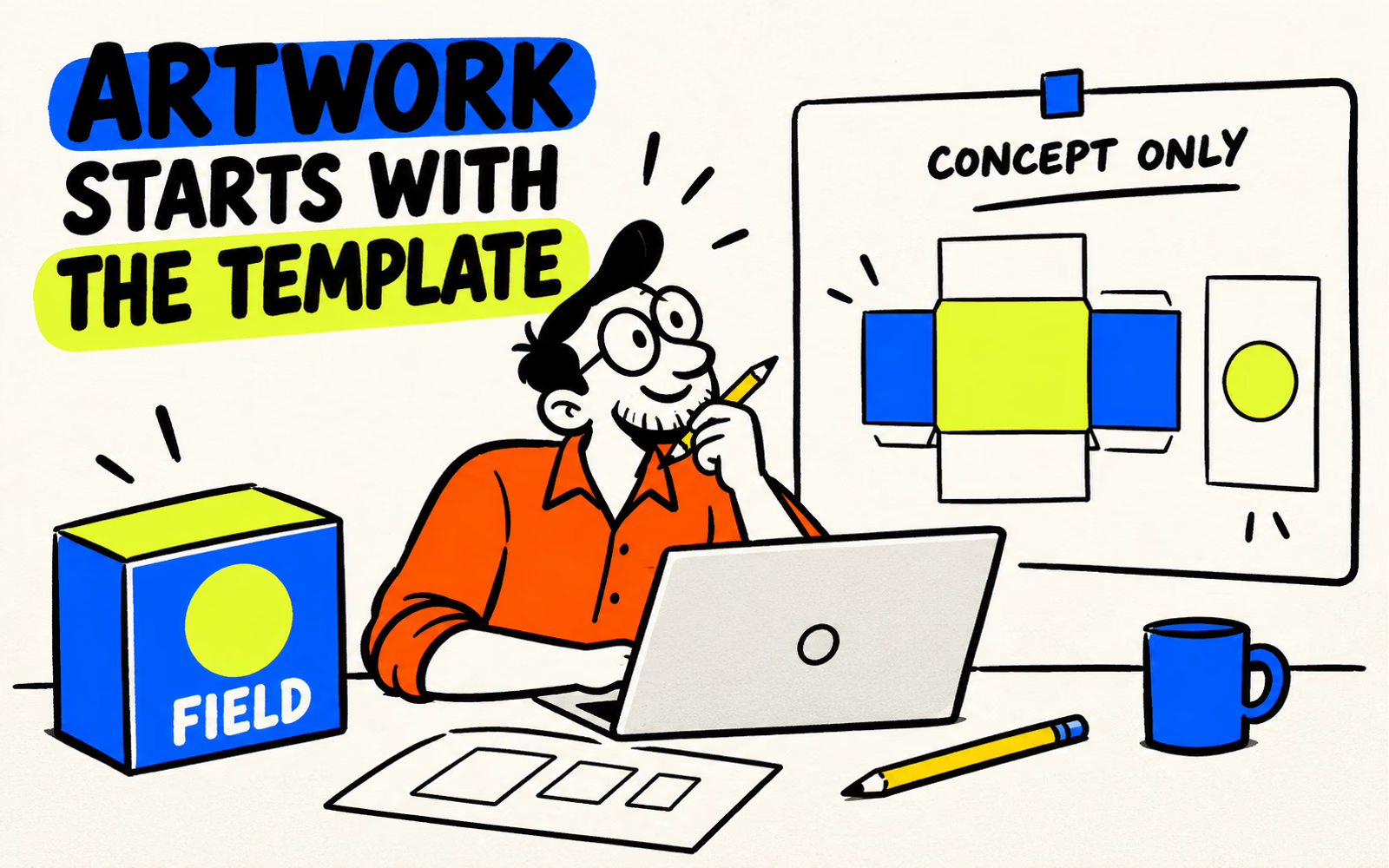
For the fictional Field concept shown here, the box illustration and panel sketch communicate a visual idea only. They are not files to manufacture. If you are comparing folding cartons and mailer boxes, obtain the layout for the selected construction.
Build artwork without changing structural geometry
Make a panel map before designing. Record which panel is the front, what is visible after folding, which way the lid opens, and which areas cannot carry essential content. Keep those instructions alongside the current template.
Prepare a simple graphic plan
- Gather the logo, original text, and image assets intended for the project.
- Set up the agreed panel dimensions and units in the editor; confirm every value against the supplied layout.
- Place the main identity and one clear supporting message on the visible face.
- Keep required information within the supplier’s specified safe areas.
- Review each panel’s orientation against an assembled concept or sample.
If working on separate panels, label the file and orientation clearly. The production team must know which graphic belongs to which surface. Do not stretch the structural layout to fit a design or redraw folds from a screenshot.
Keep technical reference lines and the printable graphics distinct in the agreed delivery method. Ask how reference layers should be handled before export. A screen preview is useful for discussion, but it cannot establish assembled fit, print color, or construction.
Check the current export options and limitations
Check the download controls in the account you will actually use. Canva’s file-type documentation describes PDF Print with bleed, crop-mark, and RGB/CMYK options; some options, including CMYK, are plan-dependent. Verify their availability before promising a file setup.
| Question | Action |
|---|---|
| What file is required? | Confirm the production format with the supplier |
| Which settings are available? | Check the current account and document type |
| Are marks and bleed requested? | Match the agreed production layout |
| What remains unresolved? | Send the question with the review file |
Canva’s margin and bleed guidance notes fixed built-in sizes. Do not treat those guides as adjustable equivalents of a supplier’s specific packaging template. Resolve any mismatch before production.
Magic Resize is available on listed eligible plans and roles. Resizing is not a structural correction. If you change canvas dimensions, review every panel and placement against the approved construction rather than assuming the graphics remain correctly positioned.
Documentation reviewed October 6, 2026. Interfaces and account entitlements can change; these illustrations show the workflow, not software menus.
Send files for a production review
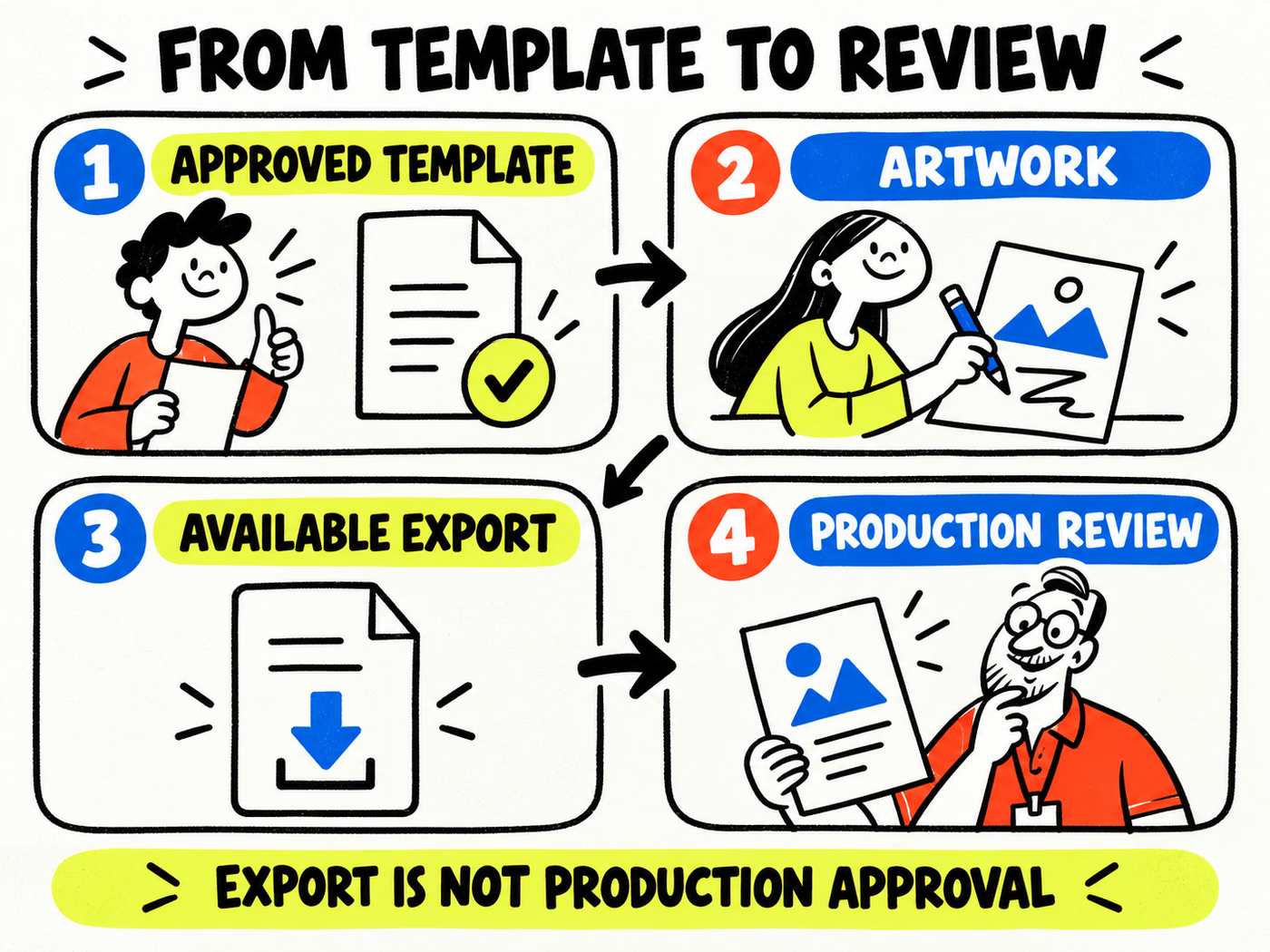
Send the agreed export with the template reference, file version, dimensions, units, print sides, and quantities per artwork. Identify any unavailable setting or uncertain layer handling instead of silently substituting another option.
Use a review record that someone else can follow
- List the panel names and their orientations.
- Check spelling, product versions, and visible information.
- Identify fonts and image assets as requested by the production team.
- Confirm the color workflow and the scope of any proof.
- Record the final approved file and layout version.
A PDF can still have incorrect dimensions, low-detail assets, or misplaced content. Review the delivered file at final size and on the assembled layout where relevant. Follow the producer’s requested corrections before treating it as production artwork.
For a smaller design exercise, try a thank-you card. A rectangular card lets you practice hierarchy and export review without inventing a box’s structure. If the package workflow needs another authoring tool or design assistance, resolve that before approving production.