
Bleed vs. Safe Area in Packaging: Read the Approved Template Correctly
Extend backgrounds where the approved layout requires bleed and keep essential content within its safe areas. Review cuts, folds, seams, and joining zones separately.
Bleed vs. safe area in packaging describes two different jobs. Bleed extends background artwork beyond the intended cut boundary; the safe area keeps essential text and graphics within the confirmed content limits. Trim, folds, seams, and joining areas need separate attention. Read the approved template’s legend and instructions instead of applying one universal margin to every package.
A background can reach the edge while the message stays comfortably inside. The important part is knowing which boundary you are looking at and what the actual producer requires.
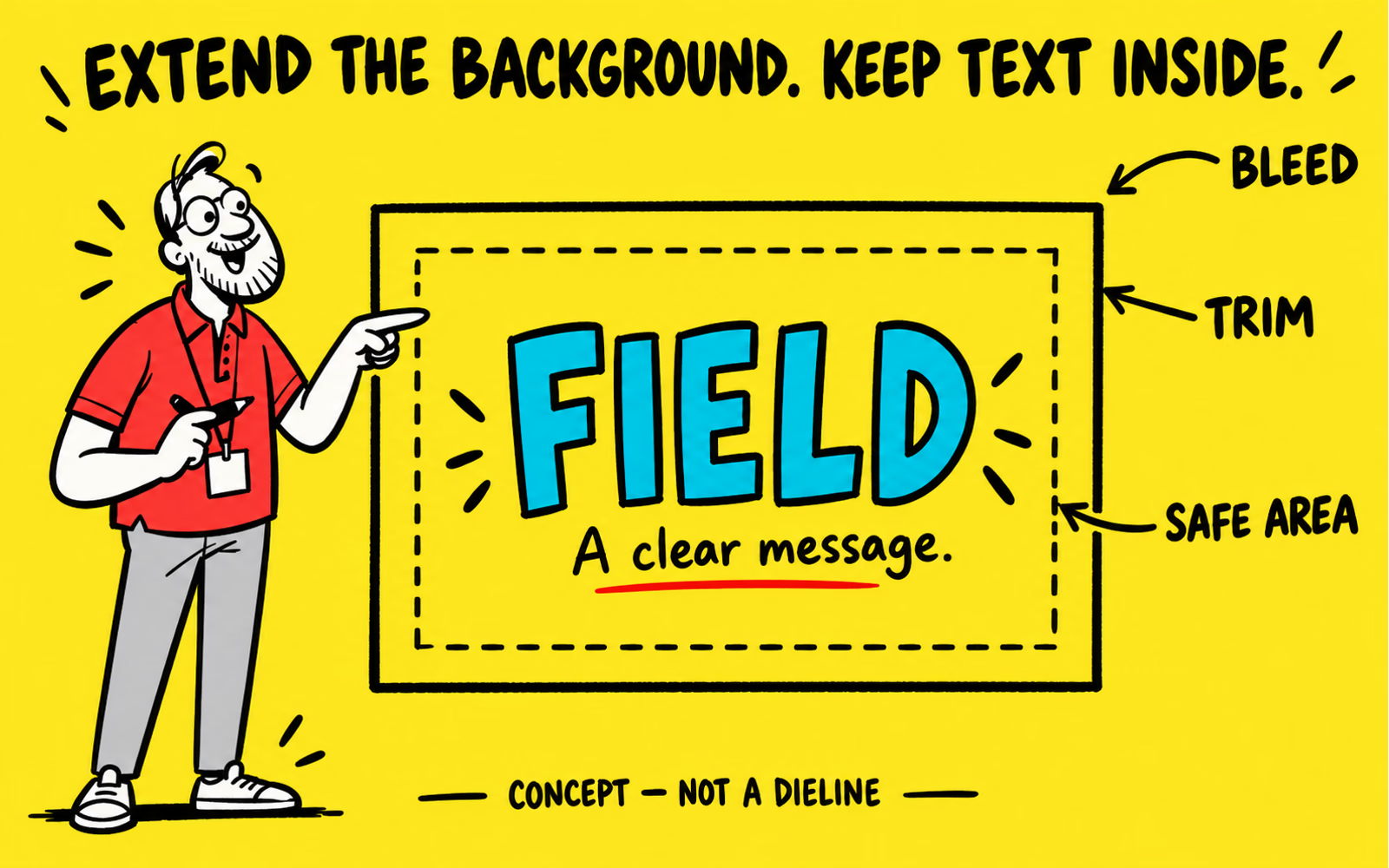
Identify trim, bleed, and safe-area instructions
Start with the template for the confirmed format and construction. Check its reference, version, dimensions, units, and legend before placing artwork. An attractive box outline from another source may describe a different package.
| Instruction | Purpose | What to confirm |
|---|---|---|
| Trim or cut | Defines the intended finished cut boundary | Its line style and geometry on the supplied template |
| Bleed | Extends relevant backgrounds beyond the cut | Required extent and export setup |
| Safe area | Keeps essential content within specified limits | Distances and restrictions for this construction |
Adobe’s printer’s marks and bleed guide explains bleed as artwork extending beyond the trim area and advises consulting the print provider for the job. Use the supplier’s packaging-specific values rather than turning an example into a rule.
Read the legend, not just the color
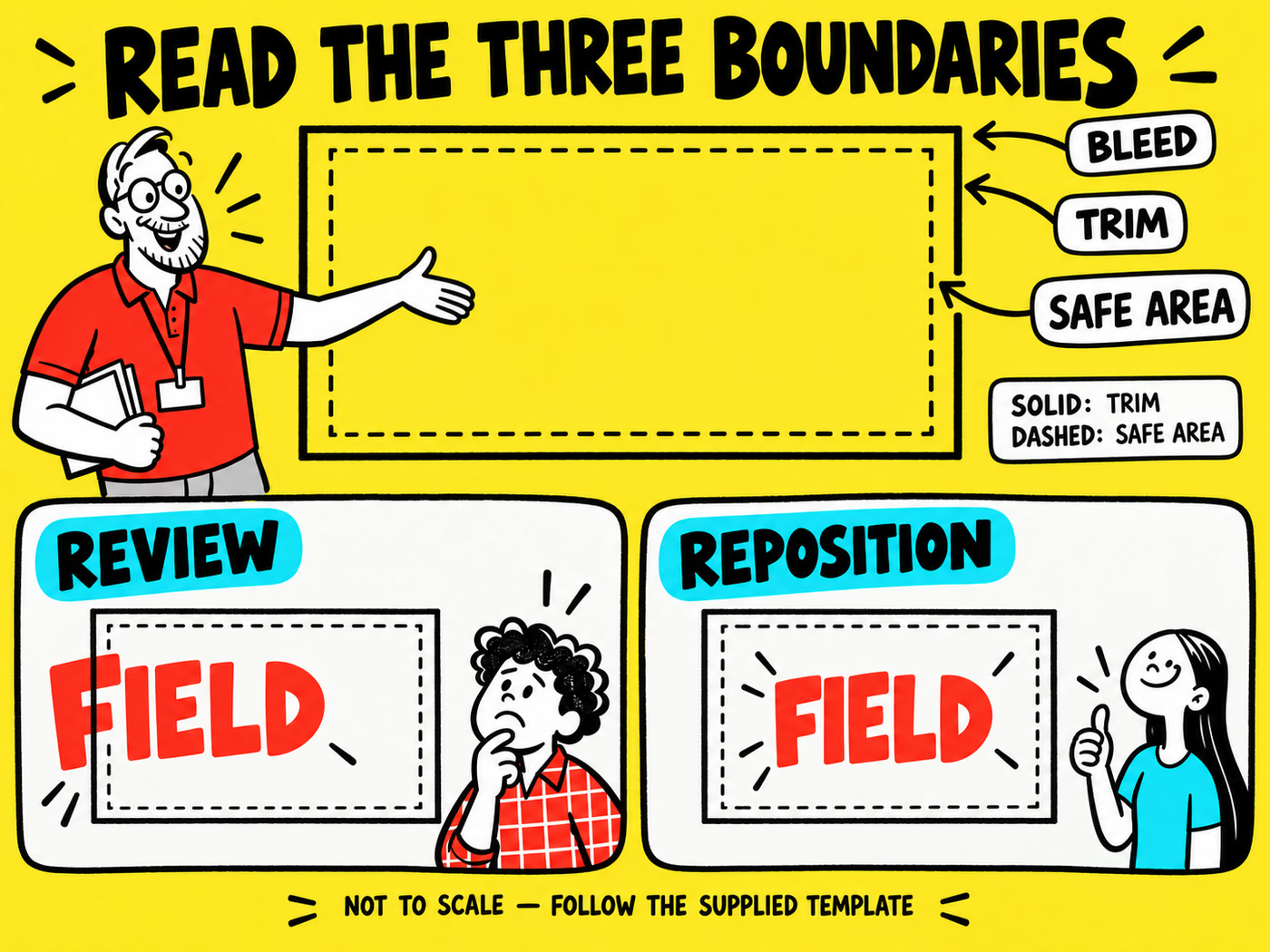
In our illustration, a solid line represents trim and a dashed line represents a conceptual safe area. That convention applies to this teaching graphic only. A real template may use different colors, line styles, layers, and instructions.
The review example places text across a boundary; the repositioned example puts it within the conceptual safe area. Neither panel gives measured distances or a file to manufacture.
Separate folds and seams from the cut boundary
A fold changes the assembled orientation; a cut defines a boundary. Joining, sealing, and glue areas can introduce other restrictions. Treat each according to the actual template rather than interpreting every visible line as trim.
Make an assembly map
Identify the front, back, lid, inner faces, and opening direction. Note which panel becomes visible when the package is closed and which information the customer sees after opening. Ask about any area whose role is unclear.
Keep essential text clear of confirmed folds, seams, closures, and non-printing zones. A large flat-layout preview can hide the fact that a word will bend around a corner or disappear under a joining area.
Compare folding cartons with other box formats before using a layout. Confirm packed dimensions with the measurement guide; those dimensions do not supply the flat dieline or its restrictions.
If the construction changes, request the current layout and revisit the panel map. Do not stretch an old dieline to make it resemble the new format.
Place critical content inside the confirmed limits
List what must remain visible and readable: the identity, product version, required information, instructions, and any verified code. Assign the content to its intended panel before fitting it into the layout.
Use the typography review to improve hierarchy before shrinking text. Keep the supplier’s content limits in view while reviewing the design at its intended finished size.
Give each graphic a clear role
- Extend backgrounds only into areas where the approved layout calls for them.
- Keep essential text and logos within their confirmed limits.
- Handle codes and their required clear spaces as separate placement requirements.
- Leave technical reference lines distinct from printable artwork in the agreed workflow.
For labels, confirm the actual label shape and application area too. A boundary on a flat label cannot show every effect of applying it to a curved container. Keep the surface specification alongside the print brief.
Review the final artwork against the supplied template
Compare the delivered export with the approved layout, not merely the editor view. Verify dimensions, orientation, print sides, required bleed, and essential-content placement. Ask which marks and reference layers belong in the delivered file.
Follow the production-artwork checklist for fonts, assets, color workflow, and version control. If using Canva, review its export and template limitations before relying on built-in guides.
Keep a short approval record
Record the template version, artwork filename, correction history, and proof scope. Identify any unresolved panel, joining area, or export setting. A supplier-reviewed correction should update the actual file, not remain as an instruction beside an old export.
Review the assembled orientation where a sample or proof allows it, and keep that review tied to the exact construction. The illustrations explain boundaries and content placement; they provide no universal millimeter values, manufacturing tolerances, or evidence of completed physical tests.