
CMYK vs. RGB for Packaging: Set Expectations Before Approving Color
Separate screen appearance from the agreed print process. Confirm the material, color setup, proof scope, and approved artwork version before production.
CMYK vs. RGB for packaging printing is a workflow question, not a promise that changing a file setting will make the print match your screen. RGB describes screen color; CMYK process printing combines cyan, magenta, yellow, and black inks. A project may also use spot inks or another confirmed process. Ask for the required file setup and proof method for the actual packaging material before approving color.
The same orange can look convincing on a laptop and still need careful review on a printed carton. Start by agreeing what the producer will print and how the result will be evaluated.
Distinguish screen color from the printing workflow
A screen emits light; a printed surface uses its material and applied colorants. Those are different ways to show a design. In its process-color guidance, Adobe explains that RGB-to-CMYK conversion depends on color-management settings and that printed appearance can differ from a monitor preview.
Separate three questions
- How is the source artwork defined?
- What output process and material are proposed?
- What review will establish the agreed appearance?
A file can contain several types of assets. Ask the production team how to prepare those assets for the selected workflow rather than converting everything by habit. Keep the instructions with the template and version record.
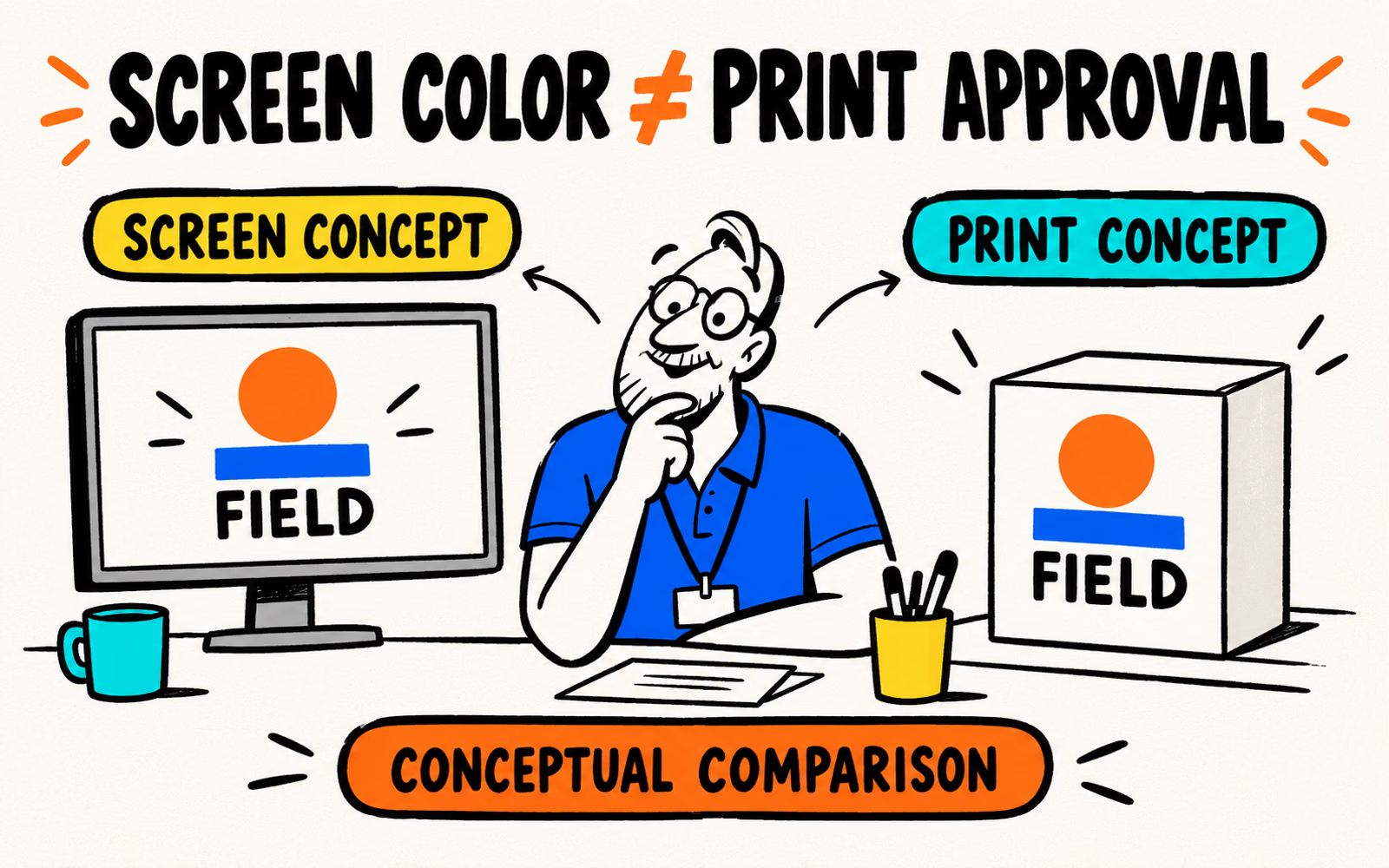
The original Field illustration places the same simple graphic on a screen and a box concept. Their colors are illustrative; they do not show a measured conversion, a press result, or a difference you can use as a correction recipe.
Check the process required for your packaging
Confirm the format, substrate, finish, intended print sides, and actual print method. Ask whether the proposed artwork uses process colors, spot colors, or a specified combination. Adobe distinguishes CMYK process combinations from spot inks; the distinction is useful, but it does not establish what your package will use.
| Field | What to record |
|---|---|
| Packaging reference | Actual construction, surface, finish, and print sides |
| Artwork | Current file version and linked assets |
| Color instructions | Required setup and references from the producer |
| Proof scope | What will be reviewed and on which material |
| Approval | Who approves which result and version |
Do not invent an ICC profile, ink recipe, or numerical tolerance because a tutorial mentions one. Request the settings that belong to the actual output process. If your design tool cannot deliver them, discuss the handoff with production.
Review labels, folding cartons, and mailer boxes as separate specifications. Follow the artwork guide for the approved layout and asset requirements.
Understand what a digital preview can and cannot show
A digital preview helps you check spelling, panel placement, image choice, and information hierarchy. Label the preview with the file and template version so corrections refer to the same arrangement.
Ask what the preview represents
Find out whether it is a visual mockup, a layout proof, or part of a defined color-review workflow. Those descriptions should come with a scope. A three-dimensional render can make a package easy to imagine without showing the actual ink, substrate, or finish.
Compare the same artwork on the proposed surfaces with the kraft-versus-white guide. Its visual simulations are planning examples, not print proofs. Keep any approved physical reference identifiable alongside the file.
For Canva artwork, use the template and export workflow. Check the account’s available settings against the producer’s requirements. An export name alone does not establish correct color handling or approval.
When reviewing small information, combine the preview with a finished-size reading review. Color appearance and readable type are related design questions, but neither is established by a large screen zoom.
Agree on a suitable proof or sample review
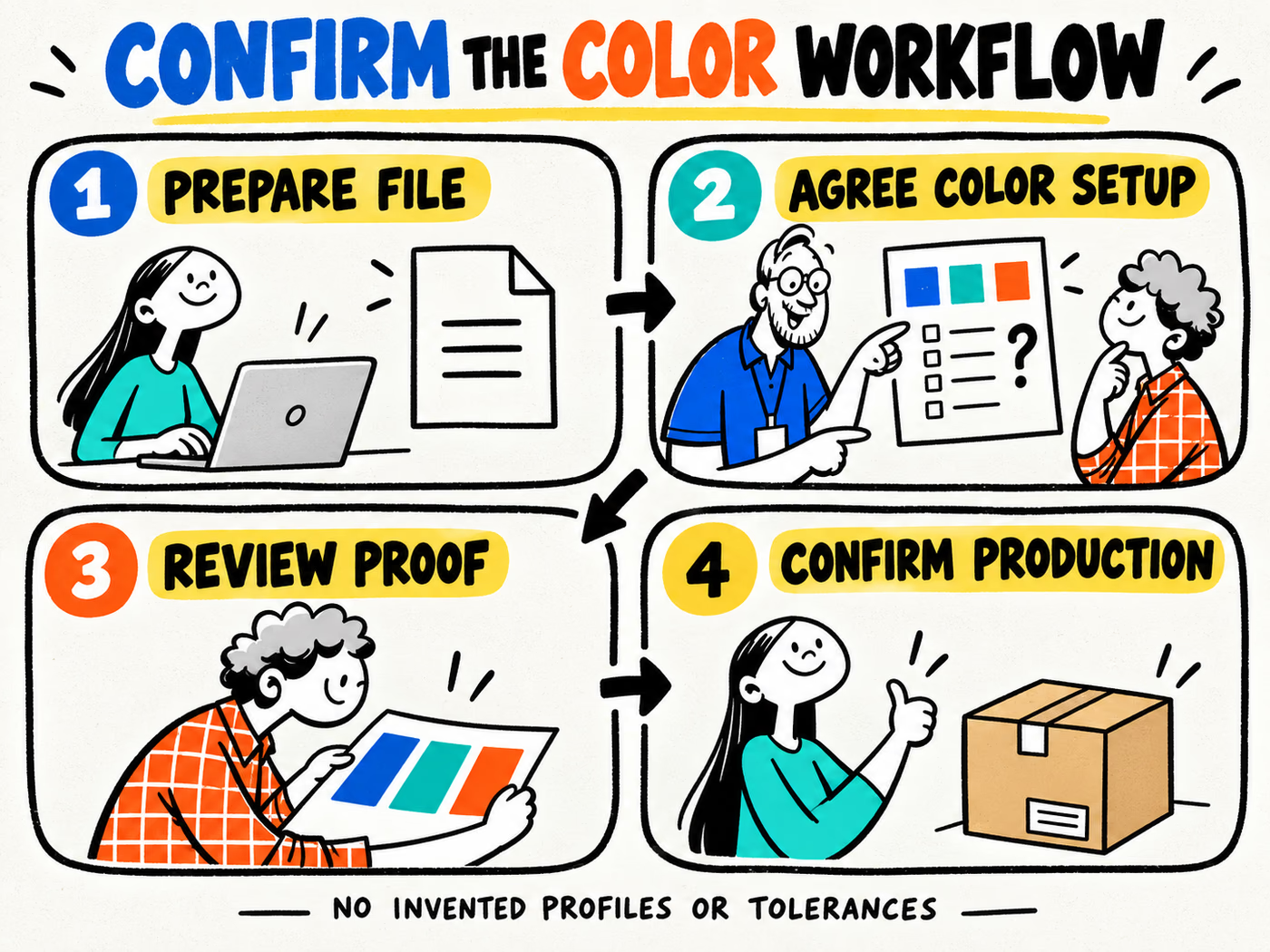
Ask which proof or sample is available for the proposed project and what it can establish. Identify the material, process, finish, artwork version, viewing conditions, and approval criteria relevant to that review.
A generic material sample can help discuss its surface without proving your artwork’s printed result. A layout proof can reveal an incorrect panel without establishing every aspect of color. Keep those purposes explicit in the approval record.
Make corrections traceable
- Name the current file and the reviewed reference.
- Describe the issue on the relevant panel or element.
- Ask production how the proposed correction will be handled.
- Review the revised version within the agreed proof scope.
- Record the final approval and any unresolved limitations.
For reorders, use the artwork and reference checklist. Recheck changes to the material, process, finish, or design rather than assuming a previous approval covers them. This article assigns no universal print tolerance and reports no completed color tests.