
Illustrator Packaging Artwork: Keep the Dieline Separate from the Design
Start with the approved structure and keep its geometry intact. Organize graphics, text and any confirmed finishes separately, then review the actual output file.
An Adobe Illustrator packaging dieline should begin with the approved template for the actual construction. Keep its cut, fold and joining geometry intact while preparing the printable graphics separately. Use clearly organized layers and confirm the required output with production. Locking a layer helps prevent accidental editing; it does not decide whether that layer belongs in the production file.
The attractive part of a box file is easy to notice. The important structural information is easier to disturb accidentally. Give those two jobs separate places in the document before adding the design.
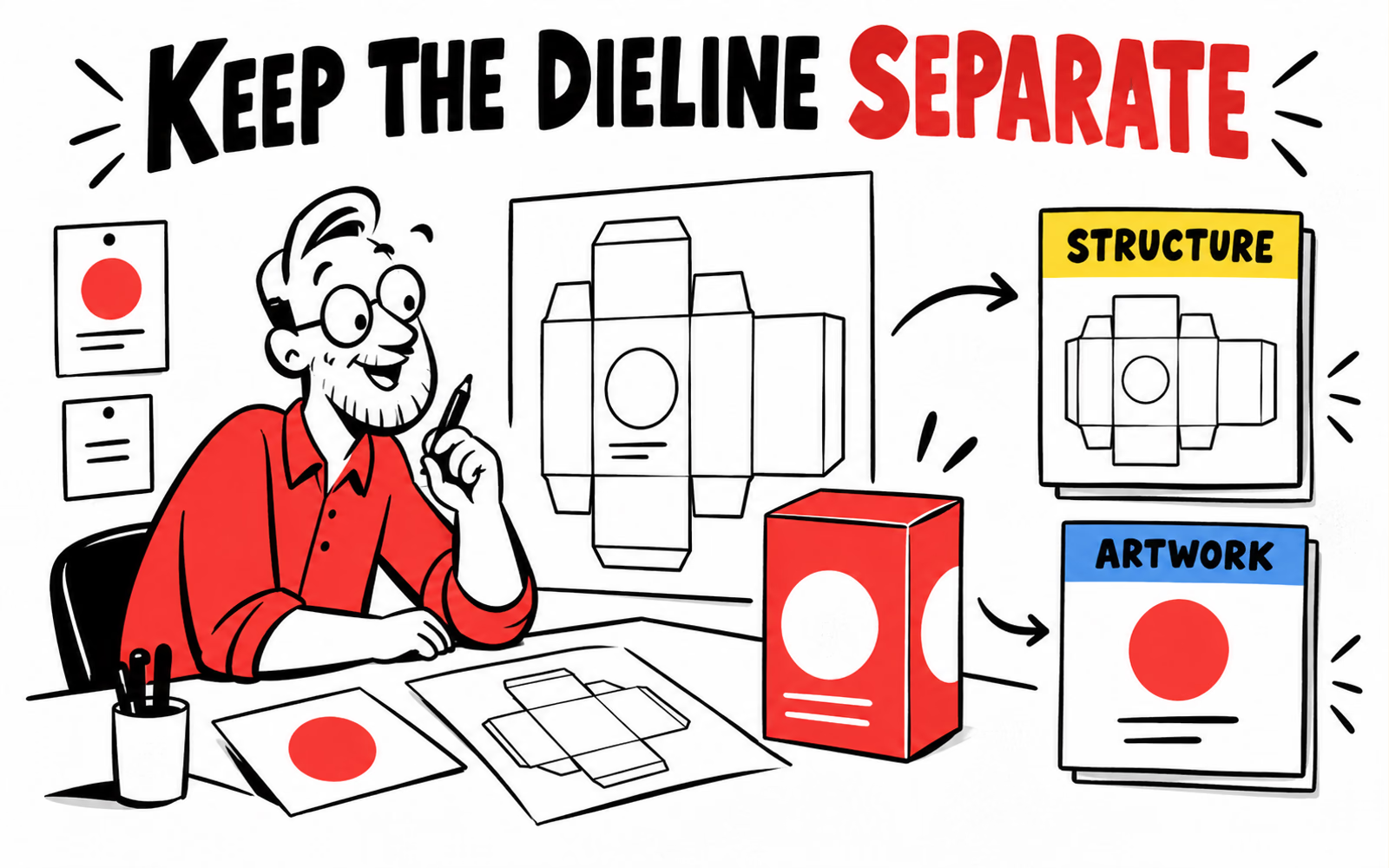
Open the approved dieline without altering its geometry
Request the approved template for the confirmed package and retain the original file. Check its revision, units, orientation and accompanying instructions. If the intended contents or dimensions change, return the question to production instead of stretching the template to make the artwork fit.
Work in a clearly named copy and keep the structure reference visible during design. Do not redraw a carton net from a photograph or a digital mockup and treat it as an approved dieline. A panel sketch can communicate an idea, but the construction still needs its own confirmation.
Know which file you are working on
Record the package reference and template revision beside the artwork version. If several sizes look similar, use references that distinguish them before opening the files. An attractive proof for one size is not evidence that another size uses the same geometry.
Use the measurement guide to prepare the actual packed dimensions for the brief. The boundary guide explains why cut, fold and content limits should be read from the supplied instructions.
Separate structural references from printable artwork
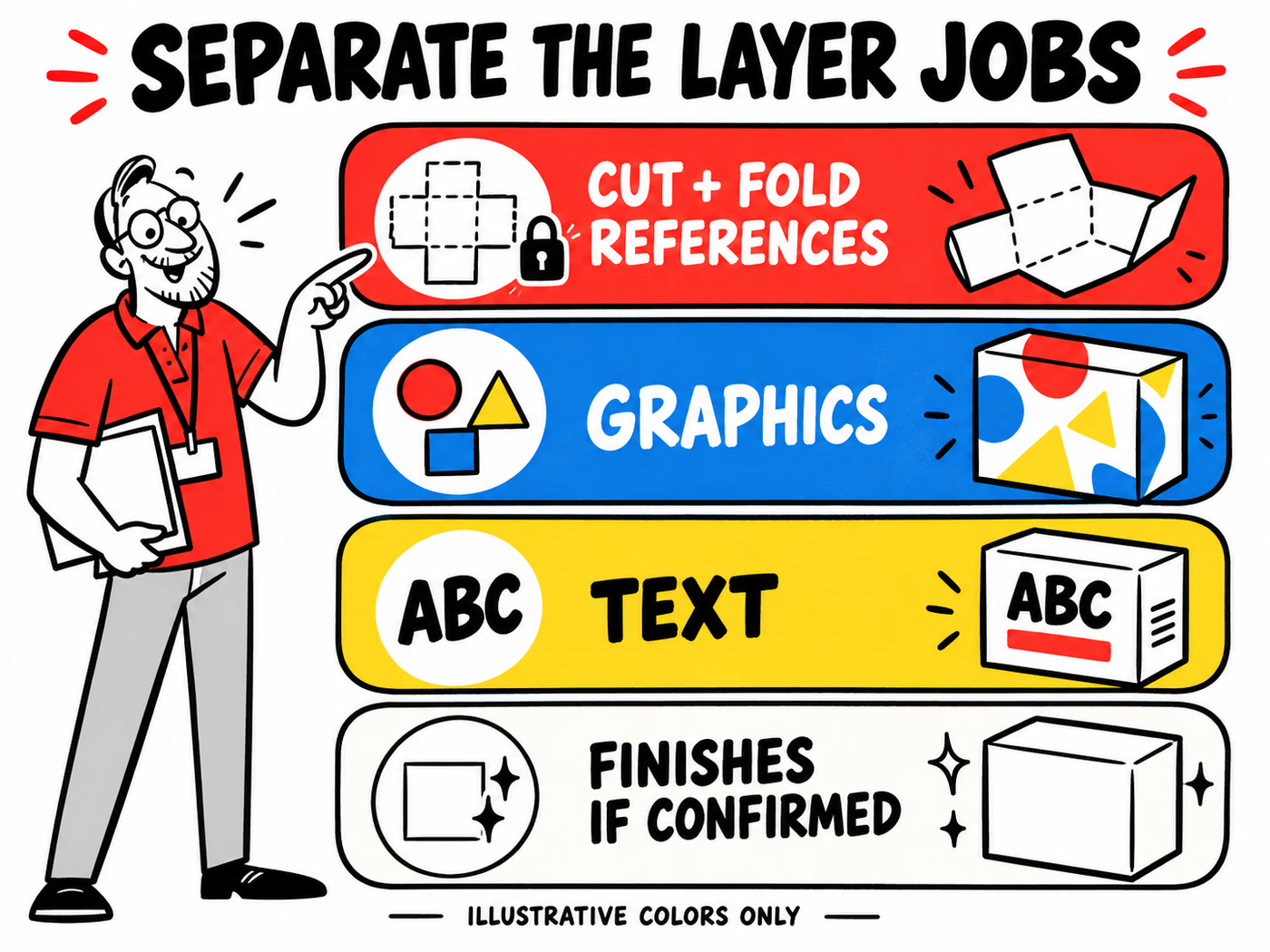
In the current Adobe layer guide, Window > Layers opens the panel. Layer Options provides separate controls for locking, visibility and printability. Use the controls deliberately: preventing edits and deciding output content are different tasks.
Organize the structure reference, graphics and text so the team can identify each job. Keep any confirmed finish artwork separate in the way production requests. Names and colors in our diagram explain this article; they are not universal ink names, technical line colors or supplier instructions.
| Document part | Planning purpose | Confirm with production |
|---|---|---|
| Structural references | Retain approved boundaries | How references are supplied in output |
| Graphics | Arrange the printed design | Artwork boundaries and print process |
| Text | Keep essential copy reviewable | Fonts and final output requirements |
| Optional finishes | Identify a separately requested treatment | Feasibility, naming and output convention |
Do not infer output from a padlock
A locked layer can still be part of the visible document. Follow the producer’s requested handling of structural references rather than assuming that locking or hiding them produces the right handoff. Keep the editable working file so a later correction does not depend on a flattened preview.
The Canva artwork guide describes the same structure-versus-design distinction in another tool. Illustrator offers different controls, but it still needs the approved construction as its starting point.
Check the required output settings with production
Ask for the requested file format and output specification before choosing an export preset. Discuss how the approved structure references, colors, fonts, images and any optional finish information should be delivered. Retain the answer with the project rather than relying on a preset from a previous job.
Adobe’s PDF options documentation describes separate controls for compression, marks and bleeds, color output and advanced settings such as fonts, overprinting and transparency. Those options support a workflow; the packaging producer determines the required combination for the actual job.
Make each setting answer a real requirement
A preset named for high-quality output does not settle every project question. Compare the requested specification with the saved settings, especially when linked images or color conversions are involved. If a requirement is unclear, identify it before submitting the final file.
Keep an editable source and the requested output as distinct deliverables. Do not assume that exporting a PDF validates structural dimensions, print appearance or finish feasibility. Those questions belong to the relevant production review.
Review the exported file before approval
Open the exported file itself, not just the Illustrator working document. Confirm the intended pages or artboards, orientation and artwork version. Read the final copy, examine image placement and compare the output with the approved template and instructions.
Look specifically for unintended structural lines in printable artwork, missing text, unexpected backgrounds and altered placement. Record any open issue rather than approving from a small preview. A reopened editable PDF and an independent view can answer different review questions; use the tools requested by production.
Keep the handoff traceable
Explore folding cartons and product boxes with packed dimensions, intended use, artwork versions, quantities and delivery ZIP. Follow the artwork guide and attach the output specification alongside the files.
Retain the template revision, final source, submitted output and approval record together. If the structure changes, identify which files need another review. This keeps the next revision connected to the actual package rather than only to its visual design.